

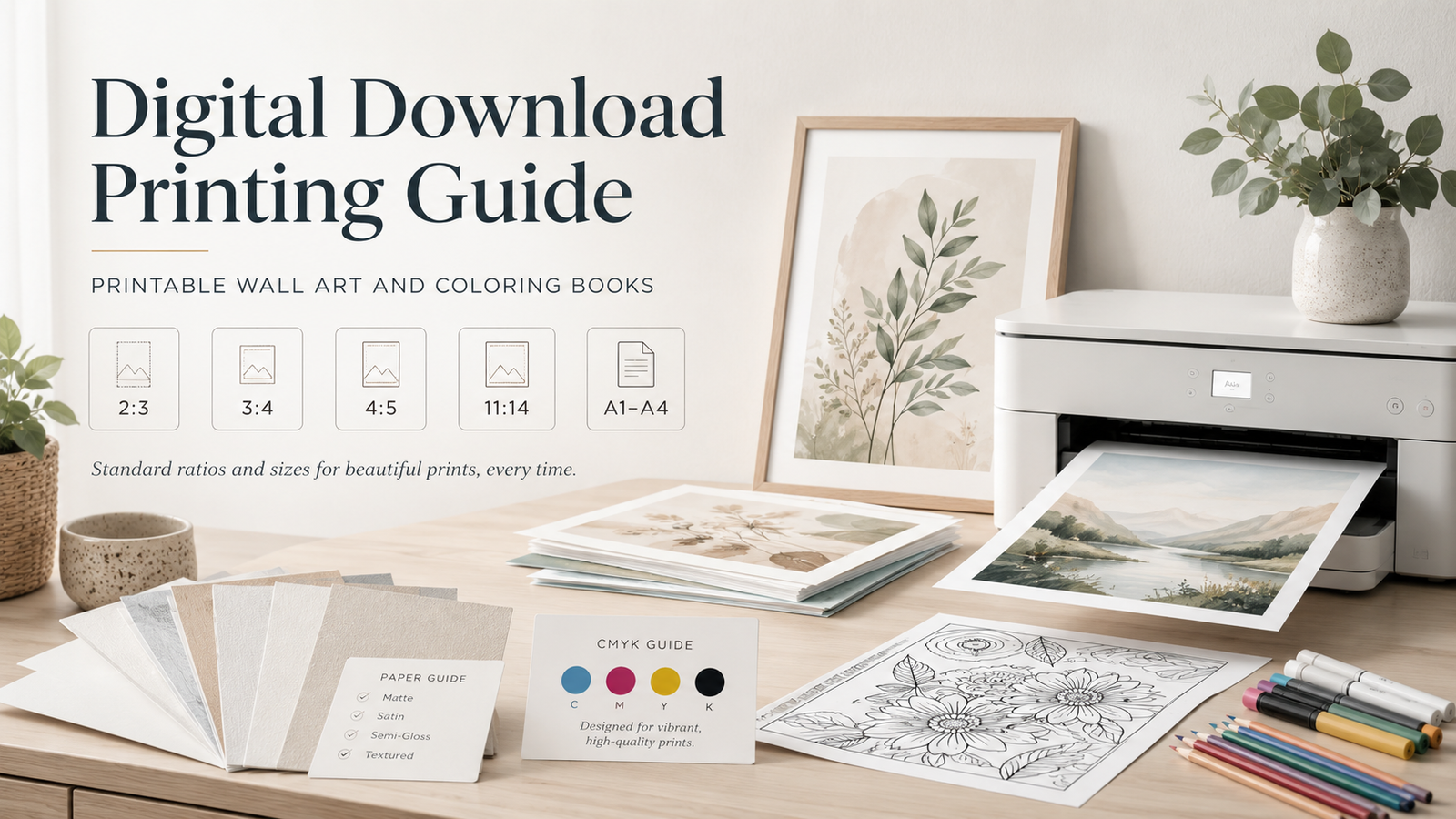
Printing a digital product becomes easier once you choose the correct file, size, paper, and printer settings.
This digital download printing guide explains how to print printable wall art and A4 digital coloring books. You will learn how to avoid cropping, stretching, faint lines, paper jams, unwanted borders, and incorrect print sizes.
Product files are digital downloads. No physical artwork, coloring book, paper, or frame ships with your purchase.
Table of Contents
- Digital File Overview
- Printable Wall Art Printing Guide
- Understanding Wall Art Sizes and Ratios
- Best Paper for Printable Wall Art
- Home Printer Settings for Wall Art
- Professional Wall Art Printing
- Digital Coloring Book Printing Guide
- Best Paper for Digital Coloring Pages
- Home Printer Settings for Coloring Pages
- CMYK and Printed Color Differences
- Home Printing Versus Professional Printing
- Size and Ratio Charts
- Common Printing Problems
- Frequently Asked Questions
- Final Printing Checklists
- Customer Support Disclaimer
1. Digital File Overview
PDF Files
PDF files preserve the page layout, dimensions, text, and image placement. A PDF often provides the safest choice when exact page size matters.
Use a PDF for:
• A4 digital coloring books
• Wall art supplied at a defined print size
• Home printing through a PDF reader
• Local copy shops
• Office printing services
• Professional print shops
Open PDF files in a dedicated PDF reader. Adobe Acrobat Reader works well for checking page size, selecting individual pages, and controlling print scaling.
Avoid printing from a small browser preview when exact sizing matters. A browser might apply its own scaling or margin settings.
PNG Files
Selected printable wall art products also include CMYK PNG files.
PNG files preserve sharp edges and fine image details. PNG also supports transparent backgrounds, although wall art files often use a complete background.
Use an included PNG when: Professional Wall Art Printing
• A printing company accepts image files
• You need a high-quality raster image
• A service requests PNG instead of PDF
• You need to place the artwork inside another approved layout
Do not assume each wall art product includes PNG files. Check the product description and the downloaded folder.
JPG Files
Selected printable wall art products also include JPG files.
JPG files work with many photo labs and online printing systems. JPG compression keeps files smaller, but repeated editing and saving can degrade image quality.
Use an included JPG when:
• A photo-printing system requests JPG
• A local photo lab does not accept PDF
• An online print form lists JPG as a supported format
Use the original downloaded JPG. Avoid taking screenshots or copying the product page preview image.
Adobe identifies JPEG as a web-friendly image format and PNG as a format suited to transparent backgrounds. High-quality printing still depends on the file’s pixel dimensions and final print size.
CMYK Color Profile
CMYK means cyan, magenta, yellow, and black. Commercial printers combine these ink colors to produce full-color prints.
A CMYK file prepares artwork for an ink-based printing process. Digital coloring book PDFs use a CMYK color profile. Selected wall art PNG files also use CMYK.
Some home printers manage colors through their own driver software. A print shop might request either CMYK or RGB based on its equipment. Send the original file and ask which version the printer prefers.
Adobe describes CMYK as the foundation of most commercial full-color printing.
File Resolution
Resolution describes how much image detail fits within a printed area. Raster files, including PNG and JPG, contain pixels.
A high-resolution file stays sharp at its intended print size. Enlarging a raster image far beyond its supplied dimensions reduces effective resolution and might create soft or pixelated details.
Adobe lists 300 pixels per inch as a common target for high-quality print graphics at the final output size. Adobe also advises against enlarging bitmap images beyond their native size for professional output.
Print only at sizes supported by the supplied file ratio and resolution. Contact customer support before requesting a size not listed with the product.
Why Screen and Print Colors Differ
Monitors create color with red, green, and blue light. Printers place ink or toner on paper.
Bright screen colors might print darker, softer, or less saturated. Results also vary based on:
• Monitor brightness
• Printer model
• Ink or toner type
• Printer profile
• Paper color
• Paper coating
• Print quality setting
• Print service equipment
A color-management system helps devices translate color, but exact matches remain difficult across different screens, printers, inks, and papers.
2. Printable Wall Art Printing Guide
Step 1: Download and Save Your Files
- Download the complete product folder.
- Save the folder to your computer or cloud storage.
- Extract the ZIP folder when your purchase downloads as a compressed file.
- Keep the original files in a separate backup folder.
- Rename copies only when needed. Do not replace the original files.
Printing directly from an email attachment or browser preview might limit size and quality controls.
Step 2: Review the Product File List
Check which formats and ratios came with your product.
Wall art purchases include PDF files. Selected products also include CMYK PNG or JPG files.
Choose a file based on:
• Your desired print size
• Your frame opening
• Your printer or printing service
• Format requirements from the printing company
Step 3: Measure Your Frame
Check the frame label or measure the inside opening.
A frame listed as 16 × 20 inches normally holds a 16 × 20-inch print without a mat. A mat reduces the visible artwork area.
Example:
• Frame size: 16 × 20 inches
• Mat opening: 11 × 14 inches
• Needed print: Usually 11 × 14 inches or larger, based on the mat overlap
Measure the mat opening and outer mat size before ordering a print.
Step 4: Select the Matching Ratio
A ratio describes the relationship between width and height.
For example:
• An 8 × 12-inch print uses a 2:3 ratio
• A 12 × 16-inch print uses a 3:4 ratio
• A 16 × 20-inch print uses a 4:5 ratio
• An 11 × 14-inch print uses the 11:14 ratio
Choose a file from the matching ratio folder. Do not force a 2:3 image into a 4:5 frame without accepting cropping or borders.
Step 5: Choose Your Printing Method
Home printing works well for smaller sizes supported by your printer.
A local print shop suits standard posters, presentation paper, cardstock, and larger sizes.
A photo lab suits artwork provided in JPG or another accepted photo format.
A fine art printer is suited to premium matte paper, cotton paper, archival pigment ink, and giclée-style output.
Step 6: Print One Test Copy
Print a small test before ordering a large or expensive version.
Check:
• Cropping
• Border size
• Color brightness
• Sharpness
• Paper finish
• Final dimensions
3. Understanding Wall Art Sizes and Ratios
Aspect Ratio
The aspect ratio compares the width to the height. A 2:3 file keeps the same shape at 8 × 12, 12 × 18, and 20 × 30 inches.
Changing both dimensions by the same percentage preserves the shape.
Changing only the width or only the height stretches the artwork.
Original Size
Original size refers to the physical or pixel dimensions of the file.
Printing at the original size preserves the intended dimensions. Enlarging past the supported size might reduce sharpness.
Scaling
Scaling changes width and height together.
A 50 percent scale produces a print half the original width and half the original height. A 200 percent scale doubles both dimensions but might reduce image quality when the file lacks enough pixels.
Cropping
Cropping removes part of the image.
A printing service might crop artwork when your selected print size uses a different ratio. Review the service preview and turn off automatic cropping when available.
Borders
A border leaves blank paper around the artwork.
Borders help when:
• Your printer lacks borderless support
• A mat will cover the outer edge
• You plan to trim the print
• You prefer a gallery-style white edge
Bleed
Bleed extends artwork past the final cut line. Printers trim the extra area after printing.
Do not assume a digital wall art file includes bleed. Ask the printer whether bleed is required. Avoid adding bleed by enlarging the image unless you accept minor edge cropping.
Adobe explains that a larger sheet might be needed when a document includes bleed or printer marks.
Frame Size and Mat Size
Frame size refers to the full print size the frame accommodates.
Mat opening describes the visible center opening. Mat boards normally overlap the print edges slightly to hold the print in place.
Choose a print large enough to sit behind the full mat opening.
4. Best Paper for Printable Wall Art
Paper weight limits vary widely by printer. Check your printer manual before using heavy cardstock, thick fine art paper, or watercolor paper.
Some consumer printers support only lighter plain paper through the main tray. Specialty photo printers often support thicker media through a rear or manual feed.
| Paper type | Appearance and best use | Suggested starting weight | Advantages | Possible disadvantages |
|---|---|---|---|---|
| Matte photo paper | Smooth, low-glare finish for illustrations and framed art | 170 to 230 gsm | Clear detail, easy to frame, limited glare | Dark colors might appear less shiny |
| Satin paper | Soft sheen between matte and glossy | 190 to 260 gsm | Rich color with less glare than glossy paper | Might show fingerprints |
| Glossy photo paper | Reflective photo finish | 180 to 260 gsm | Strong contrast and bright color | Glare, fingerprints, framing reflections |
| Fine art paper | Textured or smooth premium finish | 200 to 310 gsm | Premium surface and strong presentation | Many home printers reject thick sheets |
| Cardstock | Firm, mostly matte surface | 160 to 220 gsm | Affordable and easy to trim | Color might appear flatter than on coated paper |
| Presentation paper | Lightweight coated paper | 120 to 180 gsm | Good balance of cost and print quality | Less sturdy than photo or fine art paper |
Use paper made for your printer type. Inkjet photo paper and laser photo paper use different coatings.
5. Home Printer Settings for Wall Art
Recommended Starting Settings
• Paper type: Match the loaded paper
• Print quality: High, Best, or Photo
• Page size: Match the physical paper
• Orientation: Portrait or landscape based on the artwork
• Scale: Actual Size or 100 percent when paper and file sizes match
• Borderless: Use only when supported by the printer and paper
• Color: Full color
• Duplex printing: Off
• Preview: On
Printer manufacturers advise selecting the correct paper size, media type, and quality. Wrong media settings might affect color, ink levels, feeding, and print quality.
Actual Size and 100 Percent Scale
Use Actual Size or 100 percent when:
• File size matches paper size
• Exact dimensions matter
• Your printer supports the required margins
• No part of the image extends outside the printable area
Example:
An 8 × 10-inch file printed on 8 × 10-inch borderless photo paper should use Actual Size or 100 percent.
Fit to Page
Fit to Page reduces or enlarges the file to fit the printer’s available area.
Use Fit to Page when:
• Printing A4 content on US Letter paper
• Your printer has large non-printable margins
• A small reduction matters less than losing artwork
• A test preview shows cropping at 100 percent
Fit to Page might alter exact dimensions. Adobe states its Fit setting scales small pages upward and large pages downward to fit the chosen paper.
Borderless Printing
Borderless mode slightly enlarges the image so ink covers the paper edges. Small parts of the outer image might be cropped.
Supported borderless sizes and media vary by printer. A borderless option might remain unavailable until you select a compatible paper type and size.
Color Management
For a beginner home-printing workflow:
- Select the correct paper profile or media type.
- Avoid applying color correction in several programs at once.
- Print one test.
- Compare the result under normal room lighting.
- Adjust printer brightness only when needed.
6. Professional Wall Art Printing
Local Print Shops and Office Printing Services
Send the PDF unless the company requests another format.
Ask about:
• Supported dimensions
• Matte, satin, glossy, or cardstock options
• Borderless printing
• Trimming
• Color printing
• File scaling
• Turnaround requirements
Photo Labs
Photo labs often prefer JPG files. Use the included JPG only when your product contains one.
Check the crop preview. Photo print sizes do not always match the artwork ratio.
Online Printing Services
Before uploading:
- Select the matching product size.
- Confirm the print ratio.
- Review the full crop preview.
- Turn off automatic enhancements when they alter the artwork.
- Order one small test before purchasing several large prints.
Fine Art or Giclée Printers
Fine art printers offer premium papers, pigment inks, color profiles, and large-format output.
Ask the printer whether it prefers:
• PDF, PNG, or JPG
• CMYK or RGB
• Embedded color profiles
• A specific resolution
• Bleed or no bleed
• Added white borders
Sample Message for a Printer
Hello,
Please print the attached artwork at [width] × [height] inches.
Please keep the original proportions. Do not stretch the image. Do not crop the artwork without contacting me.
I would like full-color printing on [matte, satin, glossy, or fine art] paper. Please print with [no border, a white border, or a specific border width].
A CMYK file is available when needed. Please tell me which file format and color profile work best with your equipment.
Please confirm the final dimensions and crop preview before printing.
Thank you.
7. Digital Coloring Book Printing Guide
Digital coloring books include CMYK PDF files formatted at A4 size.
A4 measures 210 × 297 millimeters, 21 × 29.7 centimeters, or about 8.27 × 11.69 inches.
Step 1: Download the A4 PDF
Save the original PDF to your computer or tablet. Keep a backup copy.
Step 2: Open the PDF
Use a PDF reader with page selection and scaling controls.
Step 3: Select Your Pages
Choose:
• Current page
• A page range
• Selected pages
• Entire document
Print one test page before printing the complete book.
Step 4: Select Single-Sided Printing
Turn off:
• Print on both sides
• Duplex printing
• Two-sided printing
Single-sided printing protects the next design from marker bleed, ink pressure, and color transfer.
Step 5: Print on A4 Paper
For original A4 dimensions:
• Load A4 paper
• Select A4 in the PDF print window
• Select A4 in the printer driver
• Choose Portrait
• Use Actual Size or 100 percent
• Review the preview for cropped edges
Printing A4 Pages on US Letter Paper
US Letter measures 8.5 × 11 inches. A4 is narrower and taller than US Letter.
A full A4 page printed at 100 percent does not fit within the shorter 11-inch height of US Letter paper.
Use this method:
- Load US Letter paper.
- Select Letter as the paper size.
- Select Fit, Fit to Printable Area, or Shrink Oversized Pages.
- Keep Portrait orientation.
- Check the preview.
- Print one test page.
A scale of nearly 94 percent fits the full A4 page within the basic US Letter dimensions. Normal printer margins might require a smaller scale. Automatic Fit provides the safest beginner option.
Artwork will print slightly smaller than its original A4 size.
Reprinting Favorite Pages
Reprint pages only when the product license permits personal-use reprinting. Do not share, resell, distribute, upload, or give away the digital files.
8. Best Paper for Digital Coloring Pages
| Coloring medium | Suggested paper | Starting weight | Finish | Key concern |
| Colored pencils | Drawing paper or quality copy paper | 90 to 160 gsm | Smooth or light texture | Heavy texture makes fine detail harder |
| Crayons | Drawing paper or cardstock | 90 to 160 gsm | Light texture | Thick cardstock requires printer approval |
| Gel pens | Smooth drawing or presentation paper | 100 to 160 gsm | Smooth | Wet ink might smear before drying |
| Fine liners | Smooth drawing paper | 100 to 160 gsm | Smooth | Test whether printer ink reacts with the pen |
| Alcohol markers | Marker paper or smooth cardstock | 150 to 200 gsm | Smooth and coated or marker-ready | Bleed-through remains possible |
| Water-based markers | Drawing or mixed-media paper | 120 to 200 gsm | Smooth or light texture | Repeated strokes might wrinkle thin paper |
| Light watercolor | Mixed-media or watercolor paper | 190 to 300 gsm | Textured | Thick paper often exceeds home-printer limits |
Strathmore lists 114 gsm drawing paper for colored pencils and markers, 190 gsm marker paper for alcohol-based and water-based markers, and 190 or 300 gsm as common mixed-media and watercolor weights.
Copic explains that alcohol ink soaks into paper and often bleeds through. Place scrap paper or a protective sheet behind the page. Paper type affects bleeding, blending, and color appearance.
Paper Compatibility Warning
Before using paper above 160 gsm:
- Read your printer’s supported paper specifications.
- Use the rear or manual feed when provided.
- Load one sheet at a time.
- Select the closest matching media type.
- Never force thick paper through the rollers.
- Stop when the printer makes unusual feeding sounds.
Many 300 gsm watercolor papers will not pass safely through a standard home printer.
9. Home Printer Settings for Coloring Pages
Recommended A4 Settings
• Paper size: A4
• Orientation: Portrait
• Scale: Actual Size or 100 percent
• Print sides: One-sided
• Quality: High or Best
• Color mode: Color for colored covers or samples
• Line art: Black and white or grayscale when preferred
• Borderless: Usually off
• Pages per sheet: One
• Draft mode: Off
Recommended US Letter Conversion Settings
• Paper size: Letter
• Orientation: Portrait
• Scale: Fit or Shrink Oversized Pages
• Print sides: One-sided
• Borderless: Off unless supported
• Preview: Confirm all line art remains visible
Avoiding Cropped Artwork
Check whether the page border sits inside the preview.
Use Fit or Shrink Oversized Pages when any line touches or passes the preview boundary.
Avoiding Faint Lines
• Choose High or Best quality
• Turn off ink-saving mode
• Run a nozzle check on an inkjet printer
• Replace low ink or toner
• Select the correct paper type
• Print from the original PDF
Avoiding Blurry Lines
• Avoid screenshots
• Avoid browser thumbnails
• Use the downloaded PDF
• Select one page per sheet
• Turn off unnecessary image smoothing
• Confirm the paper sits flat
Avoiding Ink Smears
• Match the paper type setting
• Load the printable side correctly
• Let pages dry before stacking
• Reduce ink density when supported
• Clean the printer rollers
• Avoid duplex printing on coated paper
Epson recommends matching the media setting to the loaded paper and allowing dense prints time to dry before stacking.
10. CMYK and Printed Color Differences
CMYK files use cyan, magenta, yellow, and black color information for printing.
Screens use RGB light. RGB displays often produce bright greens, blues, and glowing effects outside the range of some printers.
Printed colors might appear:
• Darker
• Less bright
• Warmer or cooler
• Less saturated
• Different on matte and glossy paper
Paper changes color because ink behaves differently on each surface. Glossy coatings often create stronger contrast. Uncoated paper absorbs more ink and might soften dark areas.
Exact color matching cannot be promised across different printers, papers, inks, monitors, and print services.
For large orders:
- Calibrate or reduce excessive monitor brightness.
- Ask the printer which color profile it uses.
- Send the original file.
- Order one test print.
- Review the test under normal lighting.
- Approve the result before ordering more copies.
Adobe notes that RGB and CMYK colors require device profiles and color management for more consistent output.
11. Home Printing Versus Professional Printing
| Factor | Home printing | Professional printing |
| Cost | Lower for small tests and occasional pages | Better value for large sizes or premium work |
| Print quality | Depends on printer, ink, maintenance, and paper | More consistent equipment and finishing |
| Paper selection | Limited by printer feed and thickness | Wider range of photo and fine art papers |
| Maximum size | Often Letter, A4, Legal, or A3 | Large posters and custom sizes |
| Color control | Basic driver settings | Profiles, proofing, and trained operators |
| Convenience | Immediate printing at home | Requires upload, travel, pickup, or delivery |
| Best use | Test prints, coloring pages, and small wall art | Large wall art, gifts, displays, premium paper |
12. Size and Ratio Charts
Printable Wall Art Size Guide
2:3 Ratio
| Inches | Approximate centimeters |
| 4 × 6 | 10.2 × 15.2 cm |
| 6 × 9 | 15.2 × 22.9 cm |
| 8 × 12 | 20.3 × 30.5 cm |
| 10 × 15 | 25.4 × 38.1 cm |
| 12 × 18 | 30.5 × 45.7 cm |
| 16 × 24 | 40.6 × 61 cm |
| 20 × 30 | 50.8 × 76.2 cm |
| 24 × 36 | 61 × 91.4 cm |
3:4 Ratio
| Inches | Approximate centimeters |
| 6 × 8 | 15.2 × 20.3 cm |
| 9 × 12 | 22.9 × 30.5 cm |
| 12 × 16 | 30.5 × 40.6 cm |
| 15 × 20 | 38.1 × 50.8 cm |
| 18 × 24 | 45.7 × 61 cm |
| 24 × 32 | 61 × 81.3 cm |
4:5 Ratio
| Inches | Approximate centimeters |
| 4 × 5 | 10.2 × 12.7 cm |
| 8 × 10 | 20.3 × 25.4 cm |
| 12 × 15 | 30.5 × 38.1 cm |
| 16 × 20 | 40.6 × 50.8 cm |
| 20 × 25 | 50.8 × 63.5 cm |
| 24 × 30 | 61 × 76.2 cm |
11:14 Ratio
| Inches | Approximate centimeters |
| 5.5 × 7 | 14 × 17.8 cm |
| 11 × 14 | 27.9 × 35.6 cm |
| 22 × 28 | 55.9 × 71.1 cm |
A-Series Sizes
| Size | Millimeters | Centimeters | Approximate inches |
| A1 | 594 × 841 mm | 59.4 × 84.1 cm | 23.4 × 33.1 in |
| A2 | 420 × 594 mm | 42 × 59.4 cm | 16.5 × 23.4 in |
| A3 | 297 × 420 mm | 29.7 × 42 cm | 11.7 × 16.5 in |
| A4 | 210 × 297 mm | 21 × 29.7 cm | 8.27 × 11.69 in |
ISO 216 defines the trimmed dimensions of A-series paper.
13. Common Printing Problems and Solutions
| Problem | Likely cause | Practical solution |
| Print appears cropped | Wrong ratio, borderless expansion, or 100 percent scaling on smaller paper | Select the matching ratio, use Fit, or turn off borderless expansion |
| Print appears stretched | Width and height changed separately | Lock proportions and resize both dimensions together |
| White borders appear | Printer lacks borderless support, or borderless mode is off | Use supported borderless paper or trim the border |
| Colors appear dark | Bright monitor, absorbent paper, or heavy ink setting | Lower monitor brightness, try coated paper, and print a test |
| Colors appear dull | Plain paper, economy mode, or incorrect media setting | Choose the correct paper type and higher quality |
| Image appears blurry | Low-resolution preview or excessive enlargement | Print the original file at a supported size |
| Wrong paper size prints | App and printer driver use different sizes | Match the paper size in both print windows |
| Printer rejects thick paper | Paper exceeds feed limits | Use lighter paper, rear feed, or a print shop |
| Coloring-page lines appear faint | Draft mode, low ink, or clogged nozzles | Select High quality and run printer maintenance |
| Ink smears | Wrong coating, excess ink, or stacking too soon | Match paper settings and allow more drying time |
| PDF prints smaller than expected | Fit or Shrink setting is active | Select Actual Size or 100 percent when sizes match |
| Wall art does not fit the frame | Wrong ratio or mat opening | Measure the opening and print the matching ratio |
14. Frequently Asked Questions
1. Which file should I print?
Use the PDF when the exact page size matters or when a print shop accepts PDF files. Use the included JPG for a photo lab requesting a JPG. Use an included PNG when a printer requests PNG or a high-quality raster file.
Selected wall art products include PNG or JPG files. Check the product-specific file list.
2. What paper works best for printable wall art?
Matte photo paper provides a strong beginner choice because it reduces glare and preserves detail. Satin paper adds a soft sheen. Fine art paper is ideal for premium professional printing.
3. What paper works best for coloring pages?
Use 90 to 160 gsm drawing paper for pencils, crayons, gel pens, and fine liners. Marker users often prefer smooth marker paper from 150 to 200 gsm. Check printer limits before loading thick sheets.
4. Can I print digital files at home?
Yes. Confirm your printer supports the paper size, paper type, thickness, and borderless setting you plan to use.
5. Can a local print shop print my files?
Most local print shops accept PDF files. Some also accept PNG or JPG. Ask about file format, color profile, paper, borders, cropping, and final dimensions before ordering.
6. Which file ratio matches my frame?
Match the frame opening to the ratio chart. For example, use a 4:5 file for an 8 × 10 or 16 × 20-inch frame.
7. Can I resize the artwork?
You may scale the file proportionally within its supported ratio. Large enlargement might reduce sharpness. Avoid changing width and height independently.
8. Why do printed colors differ from my screen?
Screens use RGB light. Printers use ink or toner. Monitor brightness, paper coating, printer profiles, and ink systems affect the result.
9. Should I print coloring pages single-sided?
Yes. Single-sided printing protects the page behind the design from marker bleed, pressure marks, moisture, and color transfer.
10. Can I print an A4 coloring page on US Letter paper?
Yes. Select US Letter paper and use Fit, Fit to Printable Area, or Shrink Oversized Pages. Artwork prints slightly smaller because US Letter paper is shorter than A4.
11. Should I use Actual Size or Fit to Page?
Use Actual Size when file size and paper size match. Use Fit when the file exceeds the paper or printable area. Fit changes the final dimensions.
12. Why did my PDF print smaller than expected?
Fit, Shrink, or printer-margin settings are likely to have reduced the page. Select Actual Size or 100 percent after confirming the file fits the paper.
13. Should I use borderless printing?
Use borderless mode for edge-to-edge wall art when your printer and paper support it. Expect slight edge cropping because many printers enlarge the image during borderless printing.
14. Which paper should I use with alcohol markers?
Use smooth marker paper or marker-ready cardstock. Print single-sided and place scrap paper behind the page. Alcohol ink might bleed through even on heavier paper.
15. Does my purchase include a physical item?
No. Digital products contain downloadable files only. No printed art, coloring book, frame, or paper ships with the order.
16. What should I do before ordering a large print?
Print or order one test. Check the crop, dimensions, color, paper finish, borders, and image sharpness before approving a larger order.
15. Customer Support Disclaimer
All products covered by this guide contain digital files only. No physical print, coloring book, paper, frame, or art supplies are included with your purchase.
Printing results vary based on printer model, printer condition, ink, toner, paper, monitor settings, print software, color profile, and service provider.
Exact color matching cannot be guaranteed.
Print one test page before ordering a large print, printing a complete coloring book, or using premium paper.
Check the product page and downloaded file folder for product-specific formats, ratios, dimensions, and license terms.
Contact customer support before printing when the product file details do not match your desired size.